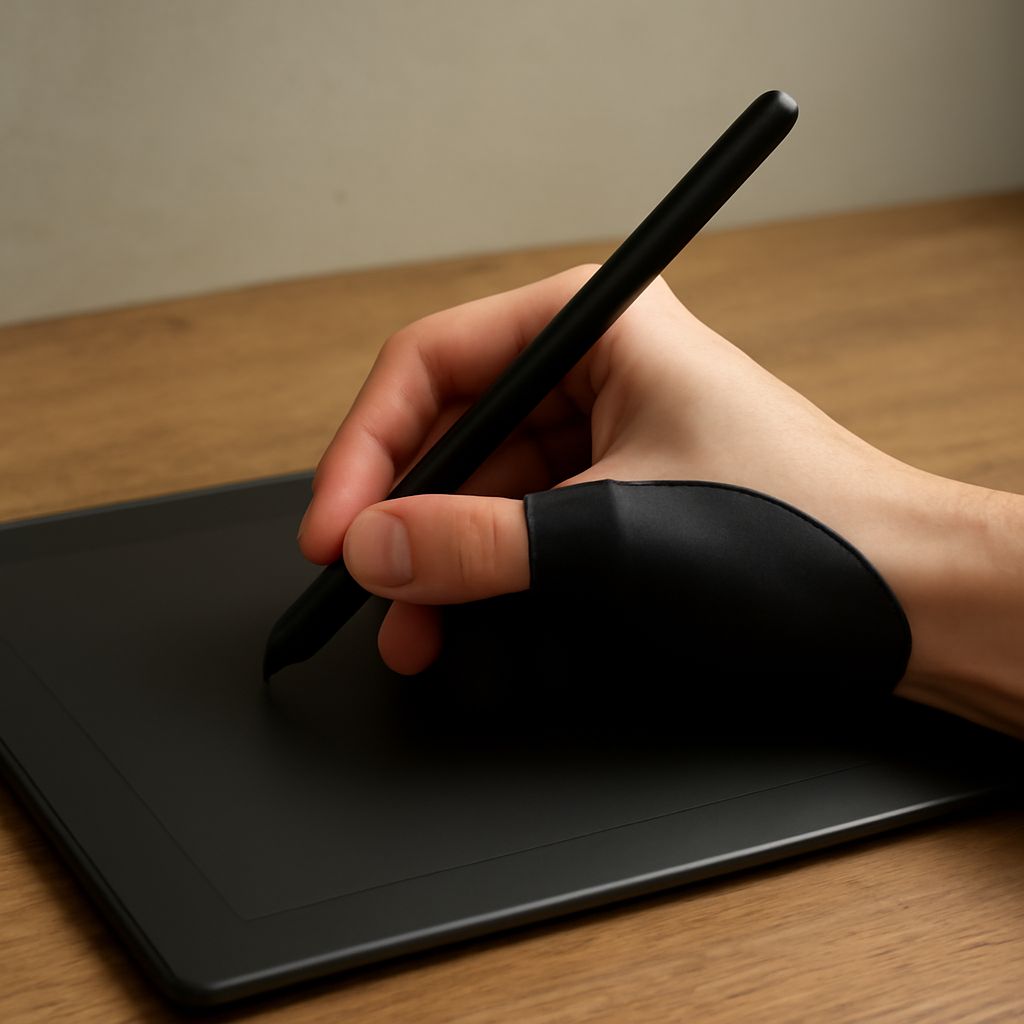
A smooth, uninterrupted stroke is easier to make when the side of your hand slides comfortably across the tablet. A glove for drawing digitally can change that contact: it covers the part of your hand that rests on the surface while leaving your pen fingers free. The right fit depends on how you draw, where your hand touches, and how much resistance you like.
Digital Drawing Glove: What It Changes
Most artist gloves cover the little finger, ring finger, and outer edge of the palm. The thumb and first two fingers remain free to hold the pen and operate controls. By placing fabric between skin and tablet, a digital drawing glove can make your hand glide more consistently and reduce fingerprints on the working area. The sensation will vary with the fabric, the surface, and any screen protector.
That difference can affect control. If your bare hand tends to stick during a long curve, smoother movement may help you carry the stroke through. If you rely on friction to stop precisely, a very slippery fabric may feel less controlled. Neither sensation makes the line for you; your grip, movement, brush settings, and practice still shape the result.
A glove for digital illustration may also cover part of the palm that would otherwise touch a screen. Some digital artists’ gloves add a thicker palm panel to reduce unwanted touch input. How well that works depends on the glove and the device, so try it with your own setup. Think of it as one part of the interaction, not a universal touch switch.
Fit the Glove to Your Drawing Hand
Measure your hand using the seller’s sizing instructions. Some size charts use palm width, others circumference, and the same label may fit differently across brands. Check which hand the glove is made for; symmetrical designs may work on either hand, while shaped panels and seams may not.
A tablet drawing glove should sit close enough that loose cloth does not bunch under your palm, yet let you spread and bend your fingers freely. Hold your pen in your normal grip. Make a fist, open your hand, and reach for your usual shortcut keys. If the fabric pulls between your fingers or the cuff shifts when you move, try another size or cut.
Look at the seam along the outer edge of your hand. It may sit directly under your weight while you draw. A bulky seam can drag or make contact uneven; a flatter one may be more comfortable on that part of the surface. A drawing glove should stay in position when you move from a small detail to a broad sweep without needing to be tugged back into place.
Match Glide and Coverage to Your Surface
Smooth fabric often moves differently on bare glass than on a textured protector or a non-display tablet. Ask whether you can start, guide, and stop a stroke where you intend. A glove that skates effortlessly over glass may need a little adjustment in your hand movement; a textured surface may give the same fabric more drag.
Notice your contact points. If you rest mostly on the little finger, a slim two-finger design may cover enough. If your palm lies flat, look for a wider panel that reaches the area you actually use. For gloves used with a drawing tablet, coverage matters at the edge of the palm as well as along the fingers. A panel that misses the contact point cannot separate it from the surface.
Keep the fabric and tablet surface clean according to their care instructions. Dust or grit trapped between them can change the feel of a stroke. Check whether your artist glove is washable and how it should dry; a clean spare can be handy if you draw daily.
Separate Hand Contact From Tablet Settings
Palm rejection is a device and software behavior: it attempts to distinguish an intentional pen or touch input from a resting hand. A glove may help with accidental contact, but results vary with the hardware, app, fabric, and the part of your hand left uncovered. Some tablets also offer a touch toggle, which can be useful if you draw with the pen and do not need finger gestures during a session. Wacom’s explanation of palm rejection notes that app support matters for that particular stylus setup.
A glove for a drawing tablet does not change the pen’s pressure curve or fix a driver issue. If strokes are too heavy, too faint, or fail to register, check the brush’s pressure response and your device settings separately. Change one setting at a time so you can tell what caused the difference.
Try It With Your Own Strokes
At your usual desk, open a blank canvas with your normal brush and settings. First draw barehanded: make several slow straight lines, long curves, small loops, and short strokes that stop at a marked point. Repeat with your sketching glove. Notice whether your hand catches, whether the cloth bunches, and how accurately you stop. Then rest your hand as you normally do and look for unwanted marks or canvas movement.
Repeat the test with touch disabled if your device offers that option. If accidental movement disappears only then, the setting may be more useful to you than extra fabric. If both approaches feel similar, choose on fit and glide. For sweeping illustration, favor the surface feel that keeps your hand moving evenly; for detailed work, choose the one that lets you stop without fighting the fabric. Your own lines are the best sample.