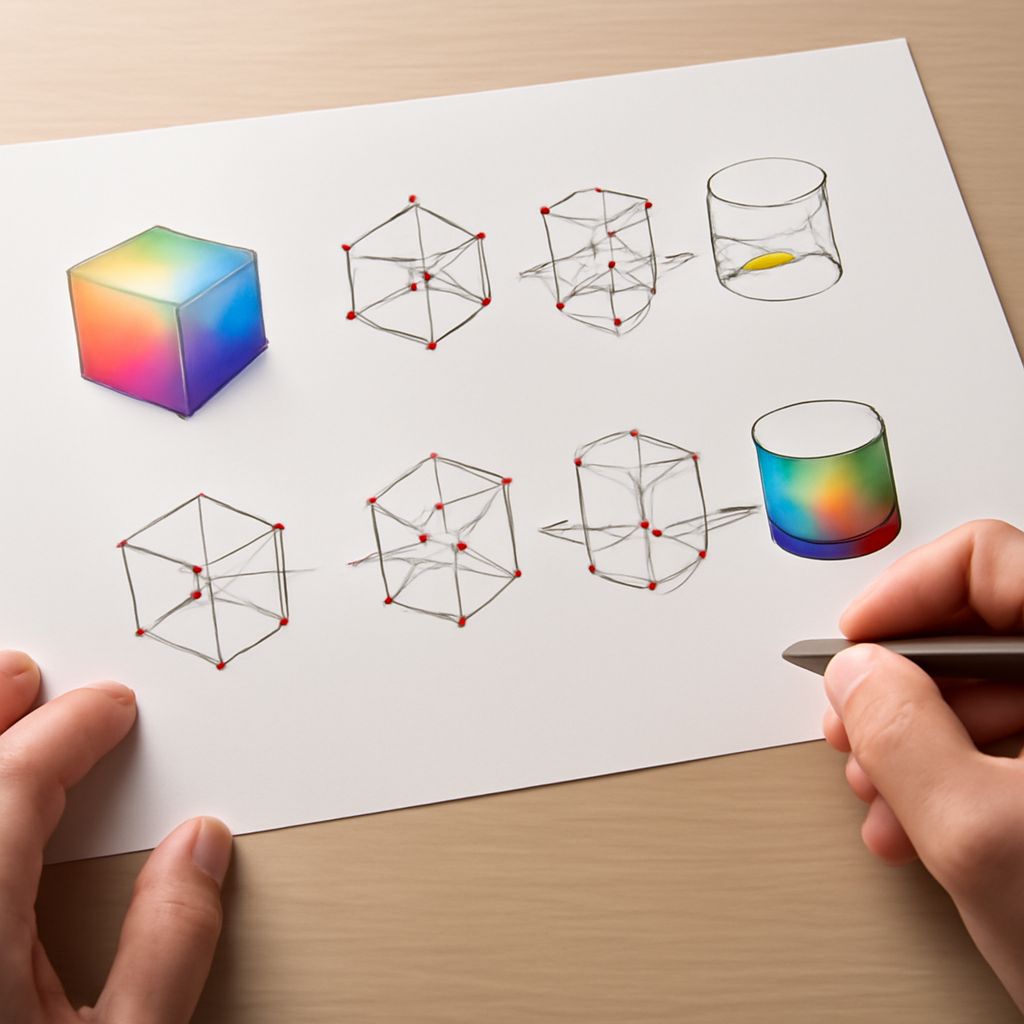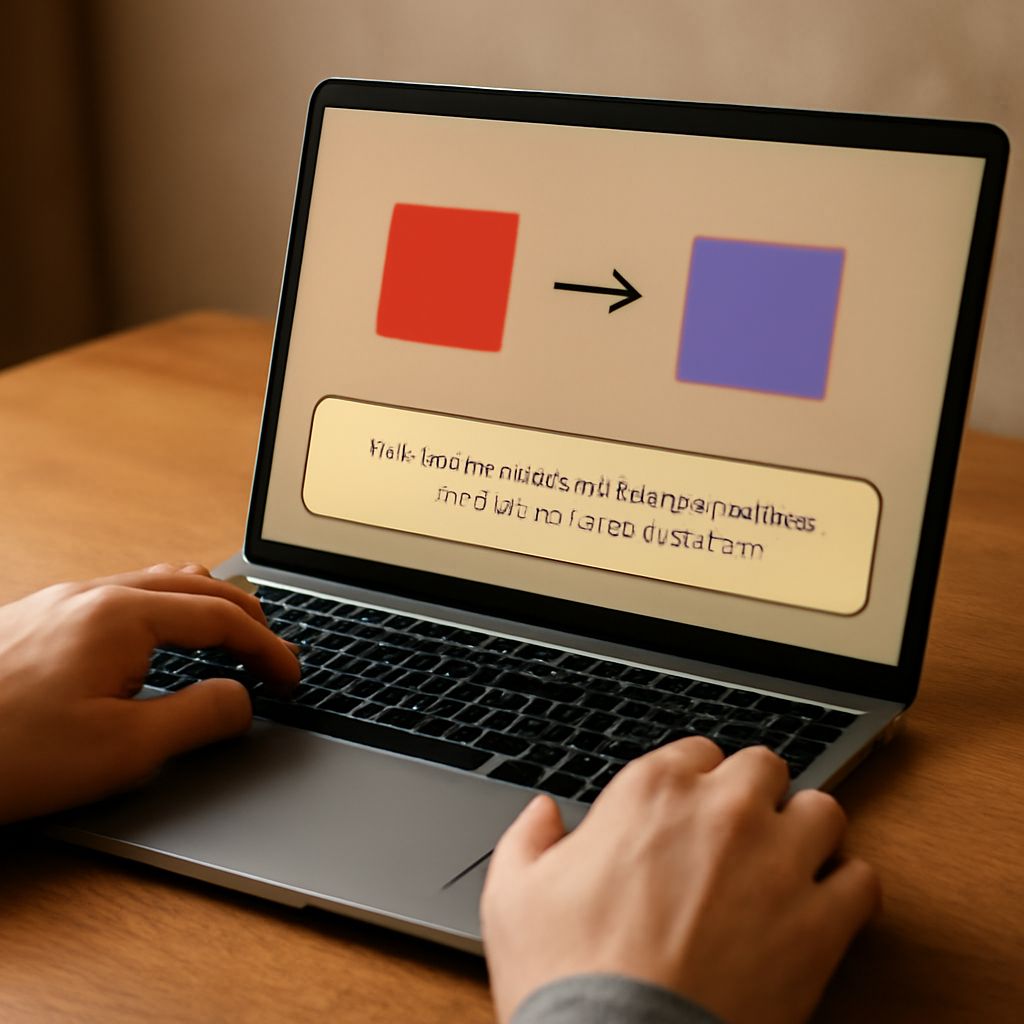
Your poster looks vivid on screen, but the print shop asks for a CMYK file. A conversion tool can translate the RGB artwork for the press; the result depends on the print profile and may look less vivid in some colors.
Before converting your RGB design into CMYK, find out which printing conditions the shop will use. Then preview the change, adjust the artwork, and check a proof. This sequence gives you a better basis for judging the finished color than a generic formula alone.
Convert RGB to CMYK for a Specific Print Job
RGB describes colors through red, green, and blue light. Process printing uses cyan, magenta, yellow, and black inks on a physical surface. The range of colors available on a screen is different from the range a particular combination of press, ink, and paper can reproduce. Bright blues, greens, and oranges may shift when they are outside the destination gamut.
An ICC profile describes a set of color conditions so a color-managed application can translate between spaces. Ask the printer for the intended CMYK profile and file specifications. If the shop will handle conversion itself, follow its instructions for supplying RGB files instead. Different profiles can produce different CMYK values from the same RGB color; there is no universal four-number answer for every press.
Suppose you have an sRGB poster with a bright blue background and a portrait. The shop requests a print PDF prepared for its specified coated-paper profile. Keep the original layered RGB file and make a separate print copy. If the source has an embedded profile, retain it so the application knows how to interpret its color values.
Preview before committing
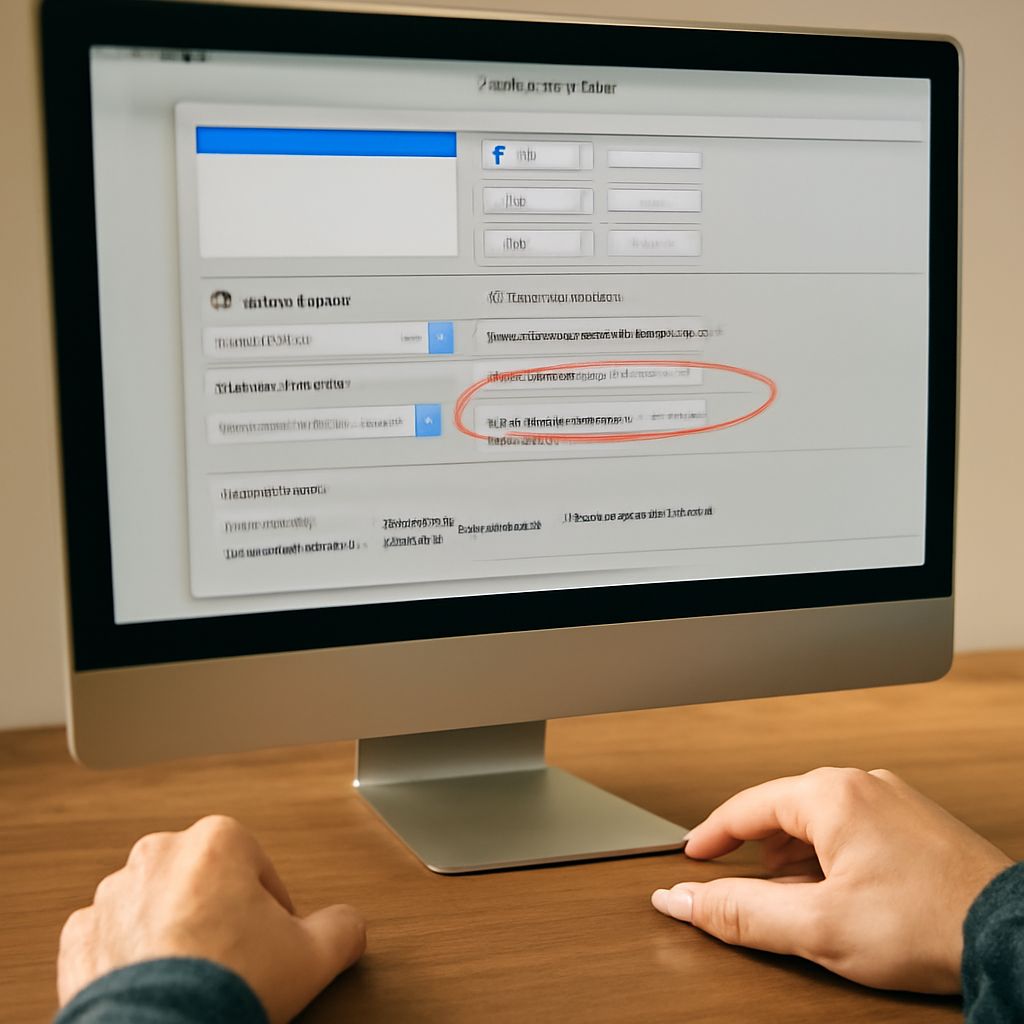
In Photoshop, choose View > Proof Setup > Custom and select the printer’s profile under the device to simulate. Turn on View > Proof Colors to compare the simulated output with the original display. Use a calibrated monitor and appropriate viewing conditions for a more meaningful preview. Adobe describes this workflow in its commercial printing guidance.
Look first at the bright blue background. If it becomes duller, compare it with nearby type: the important question is whether the headline still stands out. Then inspect the portrait’s skin tones, shadows, and transitions. A color that changes slightly on its own can also change the relationship between neighboring colors.
A soft proof is a simulation, not ink on the final paper. Use it to decide which areas deserve attention, then request a proof from the printer for important work. If the preview changes too much, adjust the source deliberately: reduce an overly intense blue, alter its contrast with the headline, or try a different palette that still serves the design.
Make a profile-aware conversion
An RGB to CMYK converter should let you specify both the source and destination profiles. In Photoshop, work on the print copy and choose Edit > Convert to Profile. Select the printer’s CMYK profile as the destination, use the conversion settings agreed with the printer, and preview the effect before confirming. Save the result in the requested format. The Adobe profile guide distinguishes conversion from assignment.
When you convert RGB to CMYK, the application changes color values to approximate the intended appearance in the destination space. Assigning a different profile instead changes the interpretation of existing numbers; it is not the same operation. Avoid repeated conversions between spaces, since each can remap colors and lose information. Return to the saved RGB master if you need a new version for another printer.
When translating rbg to cmyk for a particular press, use the profile supplied for its paper and ink conditions. A simple online calculator may show a numerical result, but unless it uses the relevant profiles and settings, its output is not a reliable print separation. For the example poster, use the shop’s coated-paper profile rather than a generic output chosen solely because it says CMYK.
Inspect the converted artwork
Compare the converted copy with the soft proof. Examine gradients for abrupt transitions, photos for lost shadow detail, and small text for contrast against its background. If the blue no longer supports the headline, adjust it while viewing the intended output conditions. Record the profile and settings used so you can reproduce the decision later.
If you change RGB to CMYK during PDF export instead of editing the image first, confirm the export settings and avoid an unintended second conversion. An RGB-to-CMYK conversion tool is only one part of a workflow that may also include layout software and a print provider’s prepress system. Ask the shop how it expects profiles and output intent to be handled.
An RGB to CMYK converter can produce a different separation when the paper or press profile changes. For a new job, obtain the new specifications and prepare another copy from the master rather than assuming the previous values still fit.
Before production, open the final PDF and check its dimensions, images, type, bleed, and color output against the printer’s requirements. Inspect a proof on the intended stock under suitable light, compare the critical blue and portrait with the approved design, and resolve any visible differences with the printer before authorizing the run.