Have you ever wondered how to add a font to PowerPoint to make your presentations stand out? Adding fonts to PowerPoint can transform your slides into captivating visual experiences. This guide will walk you through the process of adding fonts to PowerPoint, ensuring that your presentations convey the right message with the perfect typography. By learning how to add a font to PowerPoint, you will have the tools to personalize your presentations and leave a lasting impression.
Introduction to Fonts in PowerPoint
Fonts are more than just a style element; they can impact the readability and professionalism of your PowerPoint slides. Choosing the right font can convey authority, creativity, or simplicity, depending on the tone you wish to set for your presentation. Understanding the fundamentals of fonts in PowerPoint will help you make informed decisions about which fonts to use and how to incorporate them effectively into your slides.
Why Add Fonts to PowerPoint?
Adding fonts to PowerPoint is essential for personalizing your presentations and aligning them with your brand or message. Built-in fonts may not always capture the essence of your ideas, which is why adding fonts to PowerPoint is beneficial. You can choose unique styles that resonate with your audience, enhance your slides’ aesthetic appeal, and make your presentation more memorable.
Moreover, professional presentations often require specific font styles that are not part of the standard PowerPoint library. By learning how to add a font to PowerPoint, you gain access to a broader range of typographic options, allowing for creative expression and better communication of your content.
Step-by-Step Guide: How to Add a Font to PowerPoint
Adding a font to PowerPoint is a straightforward process. Follow these steps to expand your font library and increase the versatility of your presentations:
- Download the Font: Begin by downloading the desired font from a reputable source. Ensure the font file is in a compatible format, such as .ttf or .otf.
- Install the Font on Your Computer: Open the downloaded font file and click ‘Install’. This will add the font to your system’s font library.
- Open PowerPoint: Launch PowerPoint and create a new presentation or open an existing one.
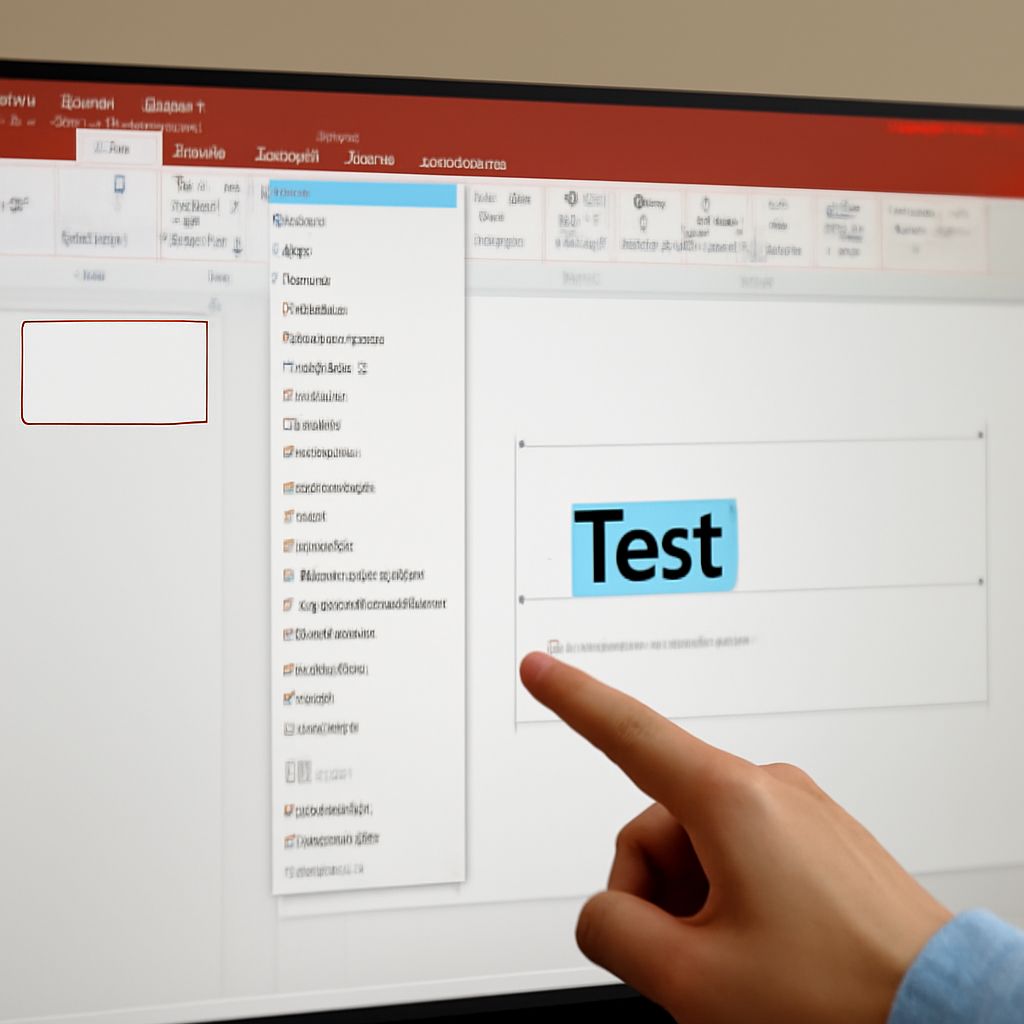
- Access the Fonts List: In PowerPoint, select a text box and click on the font dropdown menu to see the newly installed font in the list.
- Apply the Font: Choose the new font from the list and apply it to your text. Adjust the size and style as necessary.
By following these steps on how to add a font to PowerPoint, you can seamlessly integrate new fonts into your presentations.
Troubleshooting Common Issues
Sometimes, issues may arise when adding fonts to PowerPoint. Here are a few common problems and solutions:
- Font Not Showing Up: Ensure the font is installed correctly on your operating system. Restart PowerPoint and check the font list again.
- Font Displays Incorrectly: Verify that you have downloaded the latest version of the font and that it is not corrupted.
- Fonts Do Not Embed: PowerPoint may not embed some fonts due to licensing restrictions. Consider using alternative fonts if embedding is required.
By addressing these common issues, you can ensure that your fonts work seamlessly in PowerPoint presentations.
Tips for Choosing the Right Fonts
Selecting the right font is crucial for enhancing the clarity and impact of your presentations. Here are some tips to guide your choice:
- Consider Readability: Choose fonts that are easy to read from a distance, especially for large audiences.
- Match the Tone: Align your font choice with the overall theme and tone of your presentation.
- Limit Font Variety: Use a maximum of two to three different fonts to maintain a cohesive look.
- Test Font on Screen: Preview your slides to ensure the font looks good on screen and in print.
These tips will help you select fonts that enhance your presentation style and effectively communicate your message.
Conclusion: Enhancing Your Presentations
By learning how to add a font to PowerPoint, you unlock a new dimension of creativity and expression for your presentations. From choosing fonts that match your brand to troubleshooting common issues, mastering typography in PowerPoint can significantly upgrade your presentation skills. Remember, the right font can make a world of difference in how your content is perceived and remembered. Embrace the power of fonts and elevate your presentations to new heights.